< August 2008 | September 2008 | October 2008 >

September 30, 2008

FontWeight のサンプル

Windows XP 上では、太字にしてもあんまりわかんないなーと思って、比較してみた。
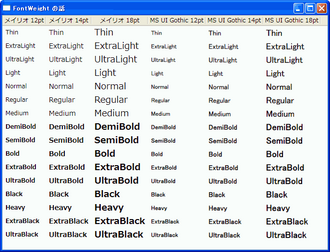
MS UI ゴシックはすごい微妙…。さすがにメイリオはわかりやすいですね。

ちなみに、ListView 内の TextBlock の Text を {Binding Path=FontWeight} にしなかったのは、ExtraLight と UltraLight 等、同じ値を表すキーワードがあるためです。これらはどちらも UltraLight と表示されます。参考:FontWeight クラス (System.Windows)[MSDN ライブラリ]

<Window x:Class="FontWeightTest.Window1"
    xmlns="http://schemas.microsoft.com/winfx/2006/xaml/presentation"
    xmlns:x="http://schemas.microsoft.com/winfx/2006/xaml"
    Title="FontWeight の話">
    <Window.Resources>
        <x:Array Type="{x:Type TextBlock}" x:Key="FontWeightArray">
            <TextBlock Text="Thin" FontWeight="Thin"/>
            <TextBlock Text="ExtraLight" FontWeight="ExtraLight"/>
            <TextBlock Text="UltraLight" FontWeight="UltraLight"/>
            <TextBlock Text="Light" FontWeight="Light"/>
            <TextBlock Text="Normal" FontWeight="Normal"/>
            <TextBlock Text="Regular" FontWeight="Regular"/>
            <TextBlock Text="Medium" FontWeight="Medium"/>
            <TextBlock Text="DemiBold" FontWeight="DemiBold"/>
            <TextBlock Text="SemiBold" FontWeight="SemiBold"/>
            <TextBlock Text="Bold" FontWeight="Bold"/>
            <TextBlock Text="ExtraBold" FontWeight="ExtraBold"/>
            <TextBlock Text="UltraBold" FontWeight="UltraBold"/>
            <TextBlock Text="Black" FontWeight="Black"/>
            <TextBlock Text="Heavy" FontWeight="Heavy"/>
            <TextBlock Text="ExtraBlack" FontWeight="ExtraBlack"/>
            <TextBlock Text="UltraBlack" FontWeight="UltraBlack"/>
        </x:Array>     
    </Window.Resources>
    <ListView ItemsSource="{Binding Source={StaticResource FontWeightArray}}">
        <ListView.View>
            <GridView>
                <GridViewColumn Header="メイリオ 12pt">
                    <GridViewColumn.CellTemplate>
                        <DataTemplate>
                            <TextBlock FontWeight="{Binding Path=FontWeight}" Text="{Binding Path=Text}" FontFamily="Meiryo" FontSize="12"/>
                        </DataTemplate>
                    </GridViewColumn.CellTemplate>
                </GridViewColumn>
                <GridViewColumn Header="メイリオ 14pt">
                    <GridViewColumn.CellTemplate>
                        <DataTemplate>
                            <TextBlock FontWeight="{Binding Path=FontWeight}" Text="{Binding Path=Text}" FontFamily="Meiryo" FontSize="14"/>
                        </DataTemplate>
                    </GridViewColumn.CellTemplate>
                </GridViewColumn>
                <GridViewColumn Header="メイリオ 18pt">
                    <GridViewColumn.CellTemplate>
                        <DataTemplate>
                            <TextBlock FontWeight="{Binding Path=FontWeight}" Text="{Binding Path=Text}" FontFamily="Meiryo" FontSize="18"/>
                        </DataTemplate>
                    </GridViewColumn.CellTemplate>
                </GridViewColumn>
                <GridViewColumn Header="MS UI Gothic 12pt">
                    <GridViewColumn.CellTemplate>
                        <DataTemplate>
                            <TextBlock FontWeight="{Binding Path=FontWeight}" Text="{Binding Path=Text}" FontFamily="MS UI Gothic" FontSize="12"/>
                        </DataTemplate>
                    </GridViewColumn.CellTemplate>
                </GridViewColumn>
                <GridViewColumn Header="MS UI Gothic 14pt">
                    <GridViewColumn.CellTemplate>
                        <DataTemplate>
                            <TextBlock FontWeight="{Binding Path=FontWeight}" Text="{Binding Path=Text}" FontFamily="MS UI Gothic" FontSize="14"/>
                        </DataTemplate>
                    </GridViewColumn.CellTemplate>
                </GridViewColumn>
                <GridViewColumn Header="MS UI Gothic 18pt">
                    <GridViewColumn.CellTemplate>
                        <DataTemplate>
                            <TextBlock FontWeight="{Binding Path=FontWeight}" Text="{Binding Path=Text}" FontFamily="MS UI Gothic" FontSize="18"/>
                        </DataTemplate>
                    </GridViewColumn.CellTemplate>
                </GridViewColumn>
            </GridView>
        </ListView.View>
    </ListView>
</Window>

September 26, 2008

デザイナでは表示されるのですが・・・?

itemscontrolbinding.png

<Window x:Class="ItemsControlTest.Window1"
    xmlns="http://schemas.microsoft.com/winfx/2006/xaml/presentation"
    xmlns:x="http://schemas.microsoft.com/winfx/2006/xaml"
    Title="京都市美術館">
    <Window.Resources>
        <XmlDataProvider x:Key="PropertyData">
            <x:XData>
                <properties>
                    <property caption="郵便番号:">606-8344</property>
                    <property caption="都道府県:">京都府</property>
                    <property caption="市区町村:">京都市左京区</property>
                    <property caption="字丁目:">岡崎円勝寺町</property>
                    <property caption="番地:">124</property>
                    <property caption="建物名以降:">岡崎公園内</property>
                    <property caption="電話番号:">075-771-4107</property>
                    <property caption="FAX番号:">075-761-0444</property>
                </properties>
            </x:XData>
        </XmlDataProvider>
    </Window.Resources>
    
    <ItemsControl Grid.IsSharedSizeScope="True" Margin="10" DataContext="{StaticResource PropertyData}" ItemsSource="{Binding XPath=/properties/property}">
    
        <ItemsControl.ItemsPanel>
            <ItemsPanelTemplate>
                <StackPanel Orientation="Vertical" />
            </ItemsPanelTemplate>
        </ItemsControl.ItemsPanel>

        <ItemsControl.ItemTemplate>
            <DataTemplate>
                <Grid>
                    <Grid.ColumnDefinitions>
                        <ColumnDefinition Width="Auto" SharedSizeGroup="PropCaption"/>
                        <ColumnDefinition/>
                    </Grid.ColumnDefinitions>
                    <TextBlock Grid.Column="0" Margin="5" Text="{Binding XPath=@caption}"/>
                    <TextBlock Grid.Column="1" Margin="5" Text="{Binding XPath=.}"/>
                </Grid>
            </DataTemplate>
        </ItemsControl.ItemTemplate>
    
    </ItemsControl>
</Window>

実行すると真っ白なウインドウが表示されます。何で?

※ データソースが XmlDataProvider でなければ出るみたいですが…。

2008.09.29 追記
あーあーあほでしたー。
properties 要素に xmlns="" を追加すると表示されます。以前にもやらかしてるのにー。

September 18, 2008

メモ: C# プログラミング ガイド

C# プログラミング ガイド

September 17, 2008

XmlDataProvider にバインドした ListView で、データに応じて行の背景色を変更する

bindingrowbackground.gif

XmlDataProvider にバインドしたリストビューで、行ごとにデータに応じて背景色を変えようと思い、こんな感じの実装をしてみました。

まず、Window1.xaml。

<Window x:Class="BindingRowBackgroundSample.Window1"
    xmlns="http://schemas.microsoft.com/winfx/2006/xaml/presentation"
    xmlns:x="http://schemas.microsoft.com/winfx/2006/xaml"
    xmlns:local="clr-namespace:BindingRowBackgroundSample"
    Title="データバインドで行の背景色を変える">
    <Window.Resources>
        
        <!-- リストのデータ -->
        <XmlDataProvider x:Key="SubjectListSource">
            <x:XData>
                <subjects xmlns="">
                    <subject name="国語">
                        <scores>
                            <score semester="1">88</score>
                            <score semester="2">91</score>
                        </scores>
                    </subject>
                    <subject name="数学">
                        <scores>
                            <score semester="1">24</score>
                            <score semester="2">25</score>
                        </scores>
                    </subject>
                    <subject name="理科">
                        <scores>
                            <score semester="1">100</score>
                            <score semester="2">100</score>
                        </scores>
                    </subject>
                    <subject name="社会">
                        <scores>
                            <score semester="1">65</score>
                            <score semester="2">54</score>
                        </scores>
                    </subject>
                    <subject name="英語">
                        <scores>
                            <score semester="1">28</score>
                            <score semester="2">65</score>
                        </scores>
                    </subject>
                </subjects>
            </x:XData>
        </XmlDataProvider>
        
        <!-- 行のデータから背景色を返すコンバータ -->
        <local:RowColorConverter x:Key="rowColorConverter"/>
        
        <!-- リスト行のスタイル -->
        <Style TargetType="ListViewItem" x:Key="ListViewItemStyle">
            <Setter Property="Background" Value="{Binding XPath=. Converter={StaticResource rowColorConverter}}"/>
        </Style>
    </Window.Resources>
    
    <ListView
        ItemsSource="{Binding Source={StaticResource SubjectListSource}, XPath=/subjects/subject}"
        ItemContainerStyle="{StaticResource ListViewItemStyle}">
        
        <ListView.View>
            <GridView>
                <GridViewColumn Header="教科" DisplayMemberBinding="{Binding XPath=@name}"/>
                <GridViewColumn Header="1学期" DisplayMemberBinding="{Binding XPath='scores/score[@semester=1]'}"/>
                <GridViewColumn Header="2学期" DisplayMemberBinding="{Binding XPath='scores/score[@semester=2]'}"/>
            </GridView>
        </ListView.View>
    </ListView>
</Window>

こっちが、コンバータの実装。

using System;
using System.Windows;
using System.Windows.Data;
using System.Windows.Media;

namespace BindingRowBackgroundSample
{
    public class RowColorConverter : IValueConverter
    {
        public object Convert (object value, Type targetType, object parameter, System.Globalization.CultureInfo culture)
        {
            var node = value as System.Xml.XmlNode;
            if (node != null)
            {
                // 1 学期と 2 学期を比較
                var sem1 = node.SelectSingleNode ("scores/score[@semester=1]");
                var sem2 = node.SelectSingleNode ("scores/score[@semester=2]");
                if (int.Parse (sem1.InnerText) > int.Parse (sem2.InnerText))
                {
                    return Brushes.Red;    // 赤いブラシを返す
                }
            }
            return DependencyProperty.UnsetValue;
        }

        public object ConvertBack (object value, Type targetType, object parameter, System.Globalization.CultureInfo culture)
        {
            throw new NotImplementedException ();
        }
    }
}

実行してみると、RowColorConverter の Convert メソッドに渡される value が子孫エレメントのテキストをすべて連結した string になってしまい、XmlNode へのキャストに失敗してしまいました。何が悪いんだよって思ったんですが・・・。

<!-- リスト行のスタイル -->
<Style TargetType="ListViewItem" x:Key="ListViewItemStyle">
    <Setter Property="Background" Value="{Binding Converter={StaticResource rowColorConverter}}"/>
</Style>

上のように「XPath=.」を削除すると、意図したとおり XmlNode 型で渡されるようになりました。なんか納得いかないですが・・・。

September 12, 2008

ルート要素タグで指定されている x:TypeArguments 属性をサポートするには x:Class 属性を必要とします。

カスタムコントロールを含むプロジェクトに、ページ関数 (PageFunction) を追加したところ、Generic.xaml で、コンパイルエラーが発生するようになった。

'ResourceDictionary' ルート要素はジェネリック型です。ルート要素タグで指定されている x:TypeArguments 属性をサポートするには x:Class 属性を必要とします。 行 2 位置 5.

Generic.xaml はリソースディクショナリなので、ルート要素に x:TypeArguments はない。こんな感じ。

<ResourceDictionary
    xmlns="http://schemas.microsoft.com/winfx/2006/xaml/presentation"
    xmlns:x="http://schemas.microsoft.com/winfx/2006/xaml"
    xmlns:local="clr-namespace:MyProject">

つまり、このメッセージはまったくのナゾ。追加したページ関数のほうには x:TypeArguments アトリビュートがあるけどね。これもバグっぽい・・・。フィードバックあり。
フィードバック: Strange xaml compilation error MC6025 in unrelated class?
MSDN Folums: Strange xaml compilation error MC6025 in unrelated class?

結局、 Generic.xaml のルートタグに x:Class="object" を追加することで回避。こんなことに時間とられてばかり・・・。

PageFunction.Resources

PageFunction を作成して、XAML 内に <PageFunction.Resources> 要素を配置するとコンパイルエラーになってしまいます。だいぶ悩んでたんですが、Microsoft Connect で検索すると PageFunction.Resources won't compile というフィードバックが引っかかりました。2006/09/13 17:42 に、Microsoft がコメントをつけています。

Good issue. We likely aren't going to be able to fix that.
You should be able to use any subclass for the classname in the property element.

よい問題提起です。僕たちはそれをフィックスできないかもしれない。
プロパティの要素では、クラス名としてどんなサブクラスでも使用できるべきです。

Please try to use Page.Resources or PageFunctionBase.Resources as your workaround.
The intellisense will complain, but it should work.

回避策として、Page.Resources か PageFunctionBase.Resources を試してみてください。
インテリセンスはぶつくさ言いますが、機能するはずです。

Another option is to put the resources one level down (inside the first panel, perhaps).

別の選択肢としては、ひとつ下の階層(多分、最初のパネルの中に)にリソースを配置することです。

バグかよ!だいたい、WPF がらみってわけのわからないコンパイルエラーで延々悩んだりして、どうにも効率が悪いです 泣。

September 11, 2008

XmlDataProvider にバインドしたコンボボックスの選択項目にバインドする

XmlDataProvider をバインドした ComboBox や ListView などの SelectedItem プロパティをデバッガで見ると、データ型が System.Xml.XmlAttribute だったり System.Xml.XmlElement だったりします。じゃあ、というわけで、さらに別のコントロールからバインドしてみました。

databind1.gif

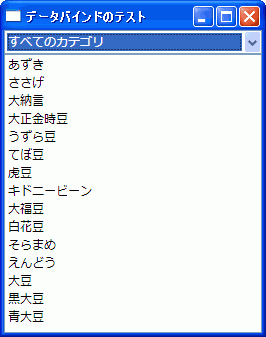
コンボボックスの選択を変更すると、その下位の項目がリストボックスに出てきます。

databind2.gif

「すべてのカテゴリ」を選択すると、「すべての~類」の項目は表示されないのがひそかにミソだったりします 笑。

<Window x:Class="DataBindTest.Window1"
    xmlns="http://schemas.microsoft.com/winfx/2006/xaml/presentation"
    xmlns:x="http://schemas.microsoft.com/winfx/2006/xaml"
    Title="データバインドのテスト">
    <Window.Resources>
        <XmlDataProvider XPath="/" x:Key="BeansData">
            <x:XData>
                <categories name="すべてのカテゴリ" xmlns="">
                    <category name="ささげ類">
                        <items name="すべてのささげ類">
                            <item name="あずき"/>
                            <item name="ささげ"/>
                            <item name="大納言"/>
                        </items>
                    </category>
                    <category name="いんげん類">
                        <items name="すべてのいんげん類">
                            <item name="大正金時豆"/>
                            <item name="うずら豆"/>
                            <item name="てぼ豆"/>
                            <item name="虎豆"/>
                            <item name="キドニービーン"/>
                            <item name="大福豆"/>
                            <item name="白花豆"/>
                        </items>
                    </category>
                    <category name="そらまめ類">
                        <items name="すべてのそらまめ類">
                            <item name="そらまめ"/>
                        </items>
                    </category>
                    <category name="えんどう類">
                        <items name="すべてのえんどう類">
                            <item name="えんどう"/>
                        </items>
                    </category>
                    <category name="だいず類">
                        <items name="すべてのだいず類">
                            <item name="大豆"/>
                            <item name="黒大豆"/>
                            <item name="青大豆"/>
                        </items>
                    </category>
                </categories>
            </x:XData>
        </XmlDataProvider>
    </Window.Resources>
    <Grid>
        <Grid.RowDefinitions>
            <RowDefinition Height="Auto"/>
            <RowDefinition Height="*"/>
        </Grid.RowDefinitions>
        <ComboBox x:Name="ComboCategory" ItemsSource="{Binding Source={StaticResource BeansData}, XPath=(/categories|//category)/@name}"/>
        <ListBox Grid.Row="1" DataContext="{Binding ElementName=ComboCategory, Path=SelectedItem}" ItemsSource="{Binding XPath=(../items|..//item)/@name}"/>
    </Grid>
</Window>

ところで、XPath で「categories エレメントまたは category エレメントの name アトリビュート」という指定を行う際に "(//categories|//category)/@name" は通るのに "//(categories|category)/@name" は通りません。これは、グループ化のほうがパス演算より優先して評価されるためらしいです。
参照: MSDN ライブラリ XPath リファレンス 演算子および特殊文字

September 4, 2008

JIS90/JIS2004

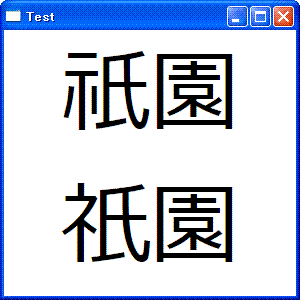
WPF では、JIS2004 か JIS90 のどちらのグリフを表示するかを指定することが出来るようだ。

<-- JIS2004 -->
<TextBlock Typography.EastAsianLanguage="Jis04" Text="祇園"/>

<-- JIS90 -->
<TextBlock Typography.EastAsianLanguage="Jis90" Text="祇園"/>

以下は Windows XP 上でメイリオを使用して表示した結果。「祇」に注目。

jis2004.gif

September 2, 2008

タイマイベントよりユーザ インターフェースにアクセスする

.NET では、Window 上のコントロール等、UI に別スレッドからアクセスすることはできなくなっている。System.Threading.Timer や System.Timers.Timer UI とは別スレッドで動作するため、UI にアクセスするには少々手順を踏まなければならない。System.Windows.Threading.DispatcherTimer は同じスレッドで動作するので、イベントハンドラ内から UI にアクセスが可能。
// Window1.xaml.cs
using System.Windows;

public partial class Window1 : Window
{
    private void Window_IsVisibleChanged (object sender, DependencyPropertyChangedEventArgs e)
    {
        // ウインドウが表示された場合
        if ((bool) e.NewValue == true)
        {
            ProgressUpdate.Value = 0;
            
            // タイマを作成
            var timer = new System.Windows.Threading.DispatcherTimer ();
            
            // タイマ間隔を設定
            timer.Interval = TimeSpan.FromMilliseconds (1000);
            
            // イベントハンドラを設定
            timer.Tick += new EventHandler (delegate (object s, EventArgs a)
                {
                    ProgressUpdate.Value += 10;
                    if ((100 - ProgressUpdate.Value) < 0.1)
                    {
                        var t = s as System.Windows.Threading.DispatcherTimer;
                        if (s != null)
                        {
                            t.Stop ();
                        }
                        this.Close ();
                    }
                }
            );
            
            // タイマ始動
            timer.Start ();
        }
    }
}
<!-- Window1.xaml -->
<Window x:Class="Window1"
    xmlns="http://schemas.microsoft.com/winfx/2006/xaml/presentation"
    xmlns:x="http://schemas.microsoft.com/winfx/2006/xaml"
    IsVisibleChanged="Window_IsVisibleChanged">
    <Grid SnapsToDevicePixels="True">
        <Grid.RowDefinitions>
            <RowDefinition Height="Auto" />
            <RowDefinition Height="Auto" />
        </Grid.RowDefinitions>
        <TextBlock   Grid.Row="0" Margin="5" TextAlignment="Center">処理中です…。</TextBlock>
        <ProgressBar Grid.Row="1" Margin="5" Height="22" x:Name="ProgressUpdate" />
    </Grid>
</Window>